
How do I troubleshoot my sending domain?
Fix SPF or DMARC records that are not found, an unaligned DKIM signature, weak policies, and checks that return no result.
2 min read
Open Settings, then Accounts, and select the domain badge on a Google Workspace mailbox. Fix the card that is not passing, then select Re-check now.
SPF or DMARC is not found
Section titled “SPF or DMARC is not found”- Expand the affected card.
- Copy its Host and Value.
- At your DNS provider, add the supplied TXT record.
- Save it and select Re-check now in ColdMerge.
If SPF still fails, check whether the domain has two records beginning with
v=spf1. Merge the required senders into one SPF record instead of keeping two.
SPF has multiple records or does not authorize Google
Section titled “SPF has multiple records or does not authorize Google”For Multiple records, combine all the senders you use into one SPF record, including Google. Do not publish another SPF record.
For Google not authorized, add include:_spf.google.com to your existing SPF
record. Keep its other authorized senders. Save, then select Re-check now.
For Needs review, re-check to get the current diagnostic before changing DNS.
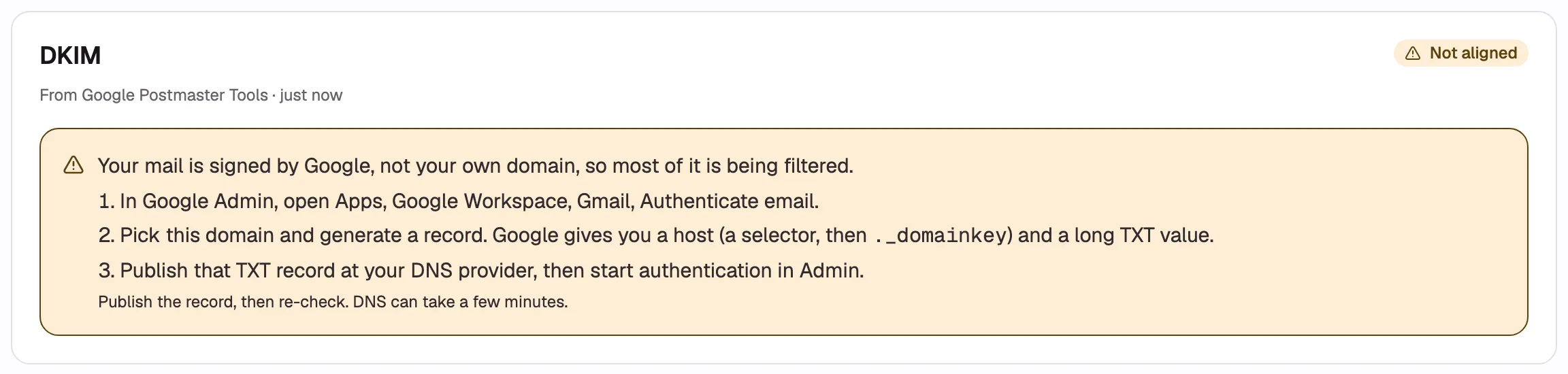
DKIM is not aligned
Section titled “DKIM is not aligned”- In Google Admin, open Apps, Google Workspace, Gmail, then Authenticate email.
- Choose the domain and generate a DKIM record.
- Publish the host and value as a TXT record at your DNS provider.
- Return to Google Admin and select Start authentication.
- Select Re-check now in ColdMerge.
SPF or DMARC has a weak policy
Section titled “SPF or DMARC has a weak policy”SPF: change a record ending in ?all or +all to the stronger value shown
by ColdMerge, which ends in ~all.
DMARC: after reviewing your DMARC reports, move from p=none to
p=quarantine, then to p=reject. Change only the policy tag if your record
already contains reporting addresses or other settings.
Weak policies do not block sending.
ColdMerge couldn’t check
Section titled “ColdMerge couldn’t check”Select Re-check now. If the result remains Couldn’t check, confirm that:
- the record is on the exact host shown by ColdMerge;
- the record type is TXT;
- the value has no missing or extra characters;
- the DNS provider has finished publishing the change.
Wait a few minutes and try again. Couldn’t check means no result was available, not that the record failed.
The result has not changed
Section titled “The result has not changed”Check the Last checked time and select Re-check now again. If the public record is correct but the page still shows the old result, contact support with the domain name and the status shown on each card.