Skip to content

Set up your sending domain

This page walks you through the sending domain screen, one card at a time. You do not need to have seen a DNS record before. Everything you have to publish, ColdMerge writes out for you.

Your sending domain is the part of your address after the @. If you send from [email protected], your sending domain is acme.com.

Anyone in the world can put [email protected] in the From line of an email. That is how email was designed, and it is why spam works. So Gmail, Outlook, and everyone else look up three public notes attached to acme.com to decide whether the mail is really from you.

Those notes are DNS records. DNS is the public address book of the internet. Your domain has an entry in it, and you can add lines to that entry. The lines that matter here are TXT records, which are just a label and a piece of text. Nothing more.

You add those lines wherever you bought your domain or wherever it is managed. That is usually a registrar such as Namecheap, GoDaddy, or Cloudflare, in a screen called DNS, DNS records, or Advanced DNS.

The three notes ColdMerge checks are:

  • SPF says which mail servers are allowed to send for your domain.
  • DKIM is a signature on each message proving it really came from your domain and was not changed on the way.
  • DMARC tells receivers what to do when SPF and DKIM do not add up, and asks them to send you reports.
  1. Go to Settings, then Accounts.
  2. Find a Workspace mailbox in the list. Under the address you will see a domain health badge: Domain healthy, Domain needs attention, Domain unverified, or Weak policy.
  3. Select the badge. The sending domain screen opens.

Several mailboxes on the same domain share one sending domain record, so they all open the same screen and one fix covers all of them.

A connected accounts row for a Workspace mailbox, zoomed in on the domain health badge under the
address, with the chevron that opens the detail screen.

The top of the screen names your domain and gives you the one-line verdict.

Badge Line beneath it What it means
Healthy Nothing to fix. All three notes check out.
Needs attention Nothing here blocks sending. At least one note is missing. Your mail is more likely to be filtered.
Weak policy Policies could be stronger. Nothing here blocks sending. All three notes are there, but one is set permissively.
Unverified Re-check to confirm. ColdMerge could not read your DNS yet. This is not a failure.

Notice the recurring line: “Nothing here blocks sending.” For SPF and DMARC that is a promise, not a hedge: whatever those two records say, ColdMerge warns you rather than standing in your way. DKIM carries the one exception in the whole product, an unaligned DKIM that ColdMerge has real evidence of, which can stop a campaign from launching. See Fix an unaligned DKIM below. Everything else here makes your mail more likely to land in spam, which is worth fixing, but it will never stand in your way.

The sending domain screen header in the healthy state: the domain name, the green “Healthy” pill,
the line “Nothing to fix.”, the “Re-check now” button, and the “Last checked” caption.
The same header in the “Needs attention” state, showing the amber pill and the line “Nothing here
blocks sending.”

Below the header sit three cards, in order: SPF, DKIM, DMARC. Each card carries a badge, a small line saying how the answer was found, and, when something needs doing, an amber box with the fix.

Badge On which card What it means
Passing Any The note is published and it checks out.
Not found SPF, DMARC ColdMerge looked in DNS and there is no such record.
Not aligned DKIM A signature exists, but it is Google’s, not your domain’s. See Fix an unaligned DKIM.
Weak policy SPF, DMARC The record is there and valid, but set permissively.
Couldn’t check Any ColdMerge could not read your DNS. Not a failure.

DKIM never says “Not found”. SPF and DMARC live at fixed, well-known names, so missing really is the failure. DKIM is different: with Google Workspace there is almost always a signature, and the problem is whose name is on it. Telling you it was “not found” would send you hunting for something that is already there.

Under each badge is a short line saying where the answer came from and when.

  • Checked with a DNS lookup means ColdMerge read your domain’s public records directly.
  • Confirmed by a probe send means ColdMerge sent one message from your mailbox to a mailbox it owns and read the headers on the delivered copy. A probe send is never seen by any of your recipients. It is the strongest kind of evidence there is, because it is what actually happened to real mail.
  • From Google Postmaster Tools means the answer came from Google’s own reporting.
  • Not checked yet means no check has run against this signal.

Each of these is followed by how long ago it happened, such as “3 minutes ago”.

The three signal cards stacked: SPF passing, DKIM not aligned, DMARC not found, so a single
capture shows the badge, the provenance line, and both kinds of guidance box.

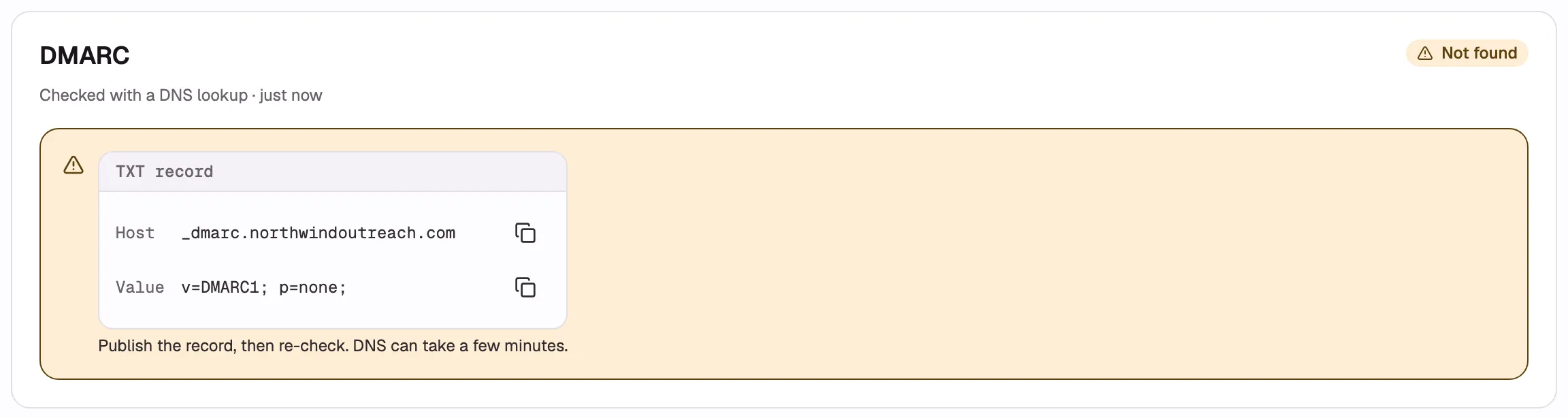
When SPF or DMARC says Not found, the card shows you an amber box with the exact record to publish. The box has two fields and a copy button on each:

  • Host, sometimes called Name or Record name at your registrar. This is where the record goes.
  • Value, sometimes called Content, Data, or Text. This is what goes in it.
The DNS record card inside the amber guidance box, showing the “TXT record” header, the Host row
and Value row in monospace, and a copy button on each row.

To publish it:

  1. In ColdMerge, select the copy button next to Host.
  2. In another tab, sign in to wherever your domain is managed and open its DNS records screen.
  3. Add a new record. Set the type to TXT.
  4. Paste the host into the Name or Host box.
  5. Come back to ColdMerge, copy the Value, and paste it into the Value, Content, or Data box.
  6. Leave TTL at whatever the registrar suggests. It does not matter here.
  7. Save the record.

Copy each field separately rather than retyping. A single wrong character in a TXT value makes the whole record fail, and these values are long.

Then come back to ColdMerge. The card already tells you what to do next: “Publish the record, then re-check. DNS can take a few minutes.”

Select Re-check now at the top of the screen. ColdMerge asks your domain’s own nameservers directly, so a record you published seconds ago is usually visible right away.

The button spins while it works and the whole screen refreshes with the new answers. Under the button, “Last checked” tells you when the most recent check ran.

If a record you just published still shows as Not found, wait a few minutes and re-check again. DNS changes take time to spread, and some registrars are slower than others.

The “Re-check now” button in its spinning “Re-checking…” state, with the “Last checked” caption
below it.

This is the one fix with no record to copy, because the record does not exist yet. Google has to generate it for you first, from a key only Google holds.

The card explains the problem in one line: “Your mail is signed by Google, not your own domain, so most of it is being filtered.”

Here is what that means. Google Workspace signs all your outgoing mail automatically, but until you set up your own key it signs under a Google domain rather than under yours. Receivers see a valid signature that does not match your From address, and treat the mail with much more suspicion.

The card gives you three steps:

  1. In Google Admin, open Apps, Google Workspace, Gmail, Authenticate email.
  2. Pick this domain and generate a record. Google gives you a host (a selector, then ._domainkey) and a long TXT value.
  3. Publish that TXT record at your DNS provider, then start authentication in Admin.

You need to be a Google Workspace administrator to do this. If you are not, send these three steps to whoever is.

Step 3 has two halves and both matter. Publish the TXT record at your registrar using the publish a record steps above, then go back to Google Admin and select Start authentication. Google will not sign under your domain until you do that last part.

Then return to ColdMerge and select Re-check now.

The DKIM card in the “Not aligned” state, with the amber box open showing the explanation sentence
and the three numbered Google Admin steps.

Weak policy means the record is published and valid, but set so permissively that it protects almost nothing. Your mail still goes out. It is just less defended than it could be.

The card asks you to end your SPF record in ~all instead of ?all or +all, and gives you the stronger record in a copy-ready card.

The last part of an SPF record is the instruction for everything not on the list. +all means “anyone may send as me”, which is the same as having no SPF at all. ?all means “no opinion”. ~all means “this is probably not me”, which is what you want.

Publish the replacement the same way you would any other record, then re-check.

The card asks you to raise your DMARC from p=none to p=quarantine, then to p=reject, once you have reviewed your reports.

p= is the policy: what you are asking receivers to do with mail that fails the checks.

  • p=none asks them to do nothing and just tell you about it. It is the right place to start and the wrong place to stay.
  • p=quarantine asks them to put failing mail in spam.
  • p=reject asks them to refuse it outright.

There is no copy-ready record for this one, deliberately. Your DMARC record also holds your own reporting addresses, and ColdMerge will not hand you a record that would wipe them out. Edit the record you already have and change only the p= part.

Move one step at a time. Sit at p=none long enough to read the reports and be sure your own legitimate mail passes, then move to p=quarantine, and only later to p=reject. Skipping straight to p=reject can send your own real mail into the void.

A signal card showing the amber “Weak policy” badge with its guidance box open. Capture the SPF
version, which includes the copy-ready stronger record.

The card reads: “Could not read this from your DNS. Re-check to try again.”

This is not a failure and ColdMerge will not pretend it is. It means the lookup did not come back with an answer either way, usually a passing DNS hiccup or a domain that was only just added.

Select Re-check now. If it stays this way for more than a few minutes, check that the domain resolves at all, then try again later.

A signal card in the “Couldn’t check” state, with the neutral grey guidance box reading “Could not
read this from your DNS. Re-check to try again.”

If everything is red at once, do it in this order.

  1. DKIM first. It is the strongest signal, it is the one that can hold up a campaign launch, and it takes the longest because Google has to generate the key.
  2. SPF next. One record, one copy, one paste.
  3. DMARC last, at p=none to begin with, so you get reports without any risk to your own mail.
  4. Re-check after each one rather than at the end, so you know which change did what.