
Features
Preview personalization before you send
Turn contact fields into a message you can inspect. Map your list, choose fallbacks and check complete and missing-data rows before launch.
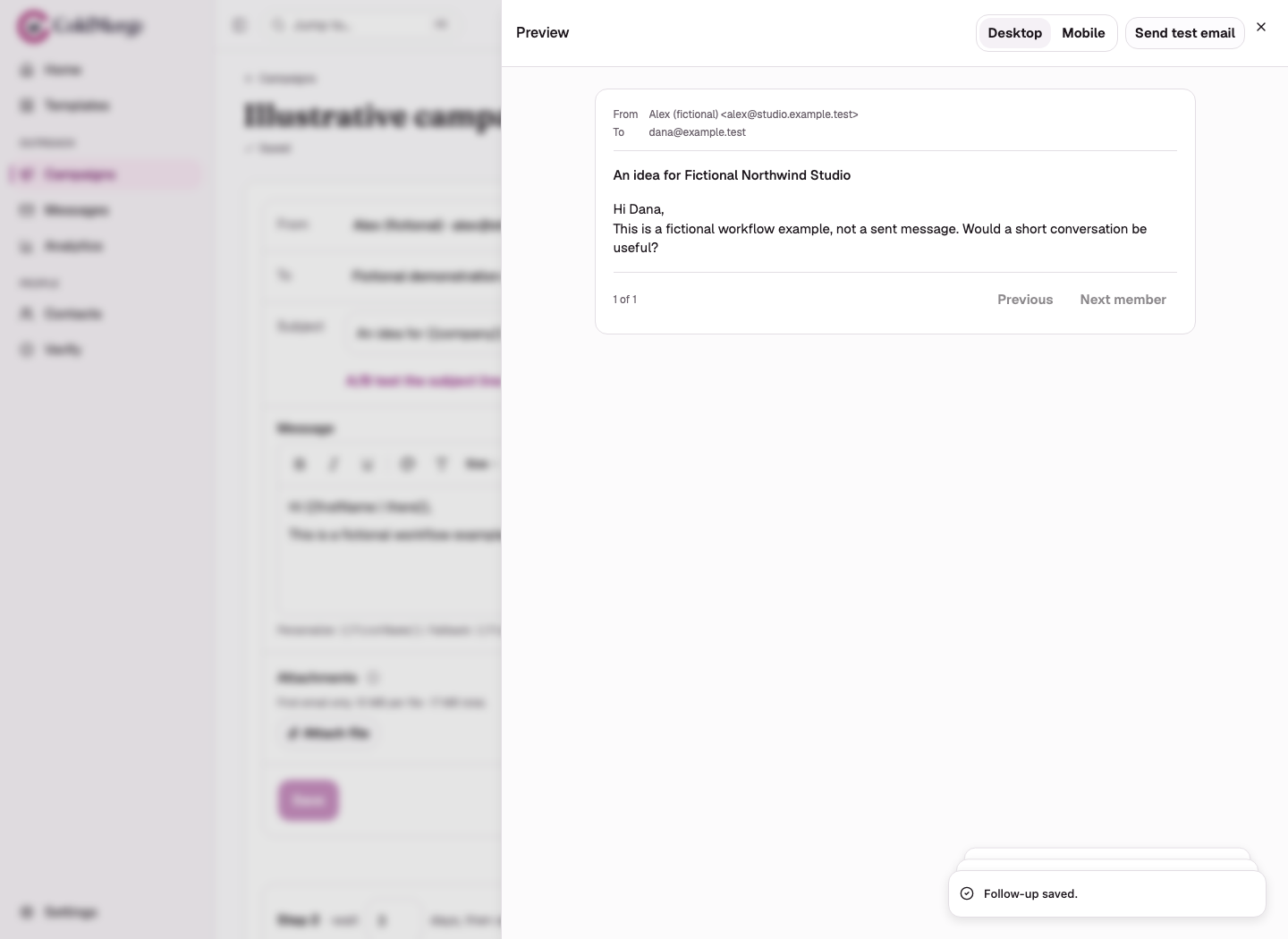
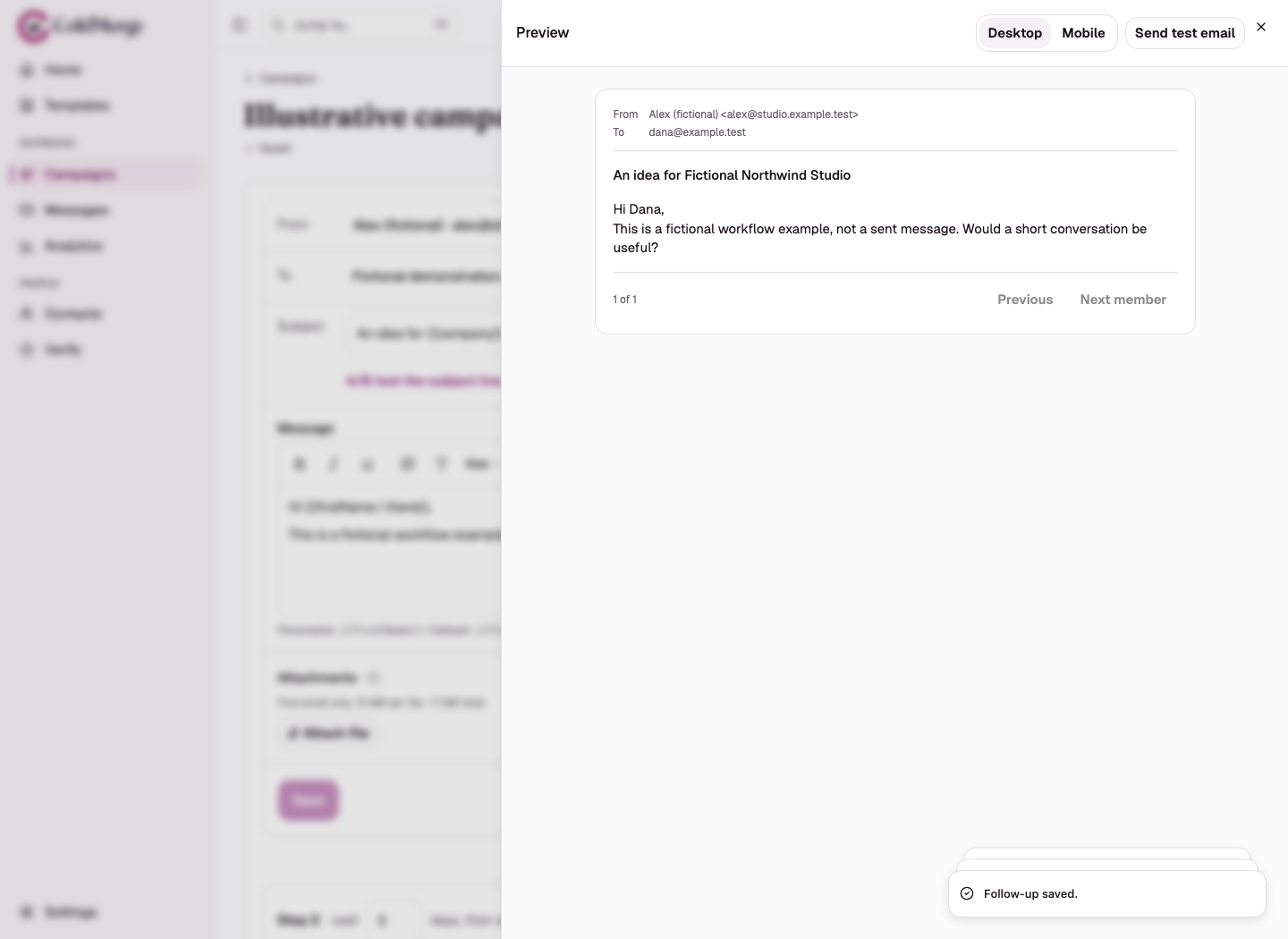
Your list has the right people, but does the message read correctly for each one? ColdMerge personalizes your Gmail mail merge subject lines and bodies with mapped contact fields, so you can inspect the saved draft before launching a campaign.
Preview a complete row and an incomplete one. Then fix the data, add a meaningful fallback or leave the default launch choice to skip contacts with missing fields.
Bring only the fields your message needs
- Import your contact file and map its email column and the contact fields your message needs. Keep
firstNameandcompanyif those are the fields your draft uses. - Check the parsed rows and import results. Field names are case-sensitive, so
firstNameandFirstnameare different tokens. - Write and save the message, then preview contacts with different field values before launch.
A successful file import is not proof that an address belongs to a working mailbox or that the contact should receive your offer.
Moving a list from another tool? Import previous opt-outs into suppression separately. A normal contact import does not carry stop requests for you.
Choose language that survives missing data
Use {{firstName | there}} to render a first name when present and “there” when missing. The full greeting becomes “Hi Ada” or “Hi there.”
For a company reference, {{company | your team}} can work when the sentence makes sense in both forms. A fallback belongs to that token, not the whole campaign.
Do not use a generic fallback for a specific observation you have not researched. Repair the evidence or remove that contact instead.
See what the same draft produces
Use this small preparation example to decide where a fallback helps. The records and outputs below illustrate the documented token behavior; they are not a captured campaign or customer result.
Subject: A question for {{company}}
Hi {{firstName | there}},Would a short conversation about your team's onboarding be useful?| Contact data | Rendered subject | Rendered greeting | Decision before launch |
|---|---|---|---|
firstName: Ada, company: Northwind |
A question for Northwind | Hi Ada, | Read the rest of the message for this contact. |
firstName: blank, company: Cedar |
A question for Cedar | Hi there, | The greeting fallback works. Confirm the rest still makes sense. |
firstName: Sam, company: spaces only |
A question for | Hi Sam, | Repair the company field or skip this contact. The subject has no fallback. |
If a company name is optional, rewrite the subject so both versions work, for example An onboarding idea for {{company | your team}}. If the company-specific claim is essential, repair the data instead of hiding the gap.
A literal tag or an unexpected blank needs a different check. Use the merge-token reference to match the symptom to the field, token and saved draft.
Understand the guard’s boundaries
A well-formed token with no value and no fallback identifies a missing field. For the first email, launch defaults to skipping affected contacts, but you can choose to send with empty tokens.
Malformed tokens can remain literal text. Preview them rather than assuming the parser removes mistakes.
Follow-up personalization is captured at the first send. Later contact edits do not rewrite the sequence’s saved data.
With the default missing-field choice, a missing value without a fallback in a follow-up causes that step to be skipped for that person. It does not cancel every later step. The campaign’s send-anyway choice also allows follow-up tokens to render empty.
Check the rows before launch
Before launch, make three checks:
- Compare the stored field name with each token, including capitalization.
- Read a complete contact and a missing-value contact in both the subject and every step’s body.
- Save corrections, then decide whether the remaining incomplete rows should be repaired or excluded.
Check the CSV format reference when the mistake starts in the list.
Does a preview block incomplete messages?
No. A preview shows gaps so you can inspect them. A real send follows the applicable guard and launch decision.
An explicitly empty fallback, such as {{company |}}, accepts a blank for that token. It works in the subject and body and survives saving and reopening the message. Use a meaningful fallback when a blank would make the sentence awkward.
Prepare an import, then preview the saved draft. The merge-token reference explains the exact syntax and edge cases.
No card required to start. Invited testers get the same 14-day free trial, and the plan is $0.99 a month if you subscribe.