Skip to content

Connect and manage your mailboxes

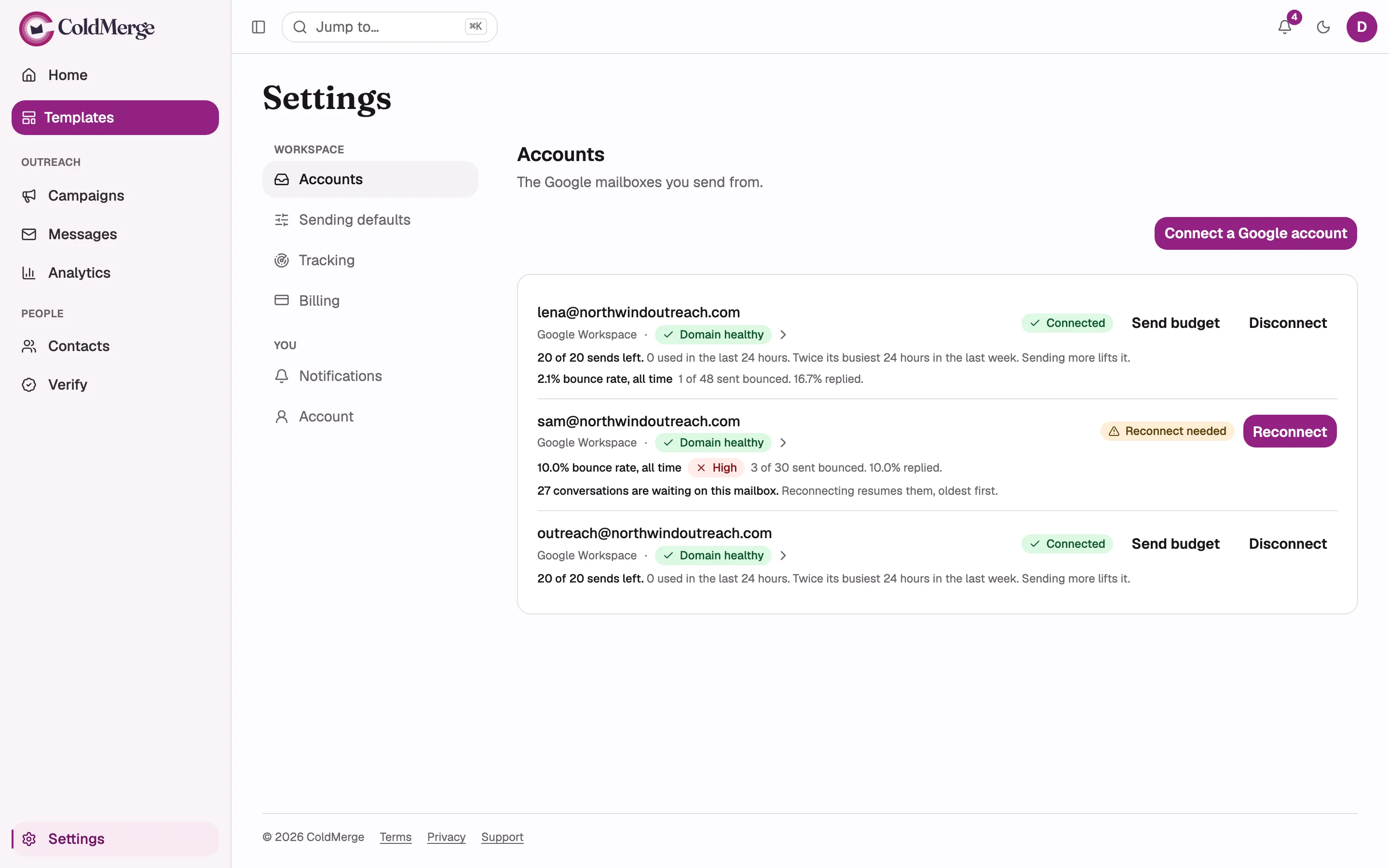
Every mailbox you send from lives on the Accounts page, under Settings. Go to Settings, then Accounts. The page describes itself in one line: “The Google mailboxes you send from.”

Connecting and disconnecting are Owner and Admin actions. A Member sees the list and the numbers but not those buttons.

The Accounts page with two or three mailboxes listed: one showing the green “Connected” badge, one
showing the amber “Reconnect needed” badge. Include the “Connect a Google account” button at the
top right and the send budget line under each row.
  1. Go to Settings, then Accounts.
  2. Select Connect a Google account at the top right.
  3. Read the What Google will ask for panel, which lists the permissions and what each is used for, then select Continue to Google.
  4. Sign in to the Google account you want to send from.
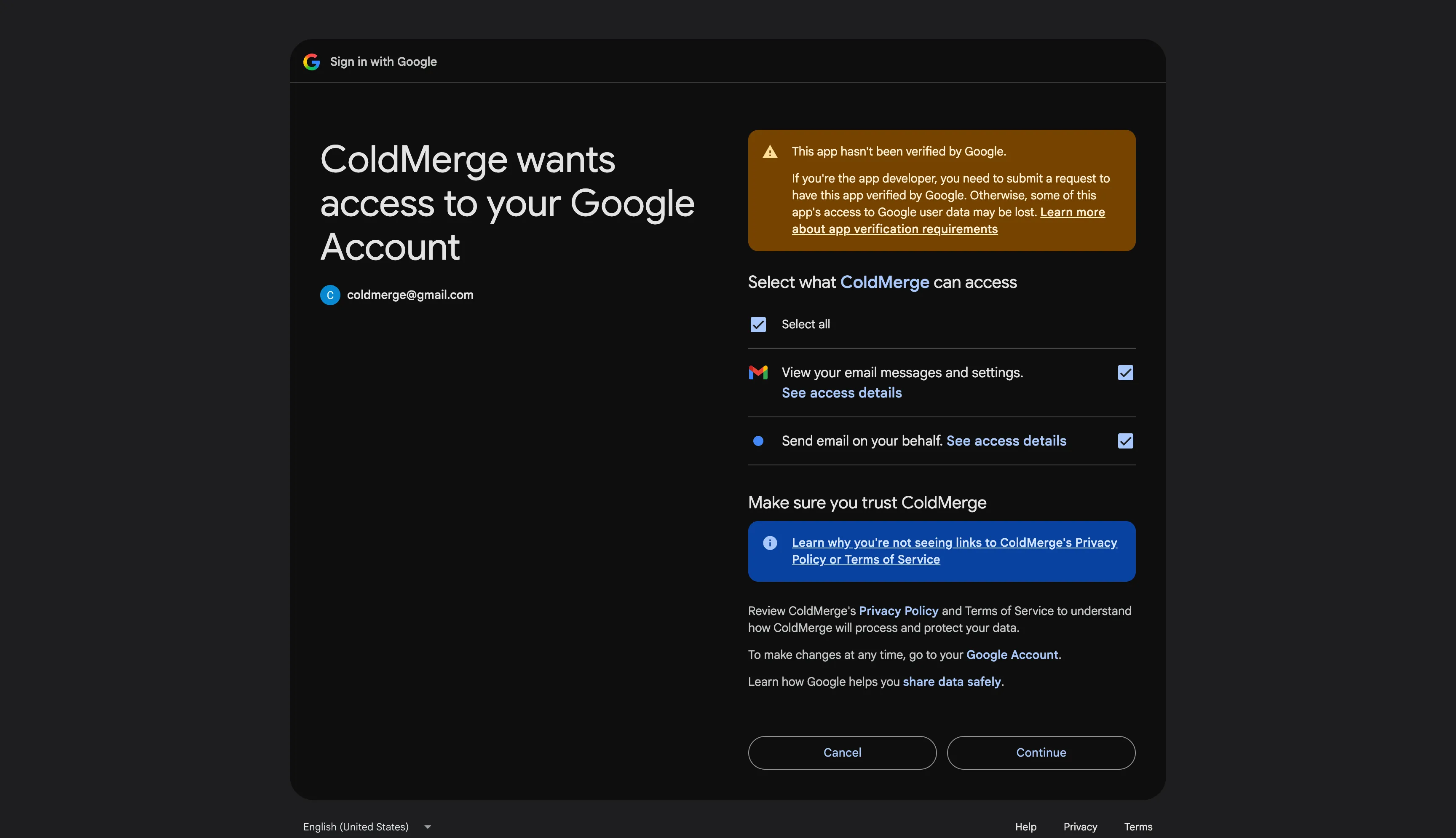
  5. On Google’s permission screen, leave every box ticked. Send email and Read email are both required: without the first ColdMerge cannot send, and without the second it cannot tell that somebody replied, so a connect missing either is refused.
  6. Google sends you back to the Accounts page, and a message at the top of the page tells you how it went.
Screenshotmailboxes-google-consent

Google’s permission screen for ColdMerge, with both the Send email and Read email checkboxes visible and ticked, since a connect missing either is refused. Crop out the account email address or use a demo account.

When it works, the message reads “Mailbox connected.” and the mailbox appears in the list with a green Connected badge.

The banner at the top of the Accounts page is one of eight messages. Here is what each one means and what to do about it.

The green “Mailbox connected.” banner at the top of the Accounts page, immediately after returning
from Google.
Message What happened What to do
Mailbox connected. The mailbox is live and ready to send. Nothing.
Could not connect. Try again. Something went wrong on the way back from Google. Start the connect again.
Your session expired. Log in, then connect again. You were signed out of ColdMerge while you were at Google. Log back in, then connect again.
Connection cancelled. You pressed cancel at Google. Nothing was created. Start again when you are ready.
Send email and Read email are both required, the second so a reply stops the follow-ups. Connect again and leave both ticked. One of the two Gmail permission boxes was unticked at Google. Connect again and leave every box ticked.
Google did not return a lasting credential. Try again. Google signed you in but did not hand over the long-lived credential ColdMerge needs. Start the connect again.
That mailbox is connected elsewhere. Disconnect it there first, then connect it here. See The “connected elsewhere” message below. Disconnect it in the other workspace first.
You have reached your plan’s mailbox limit. Upgrade to connect another. See The mailbox limit message below. Upgrade your plan, or disconnect a mailbox you no longer send from.

One mailbox belongs to exactly one ColdMerge workspace at a time. If the address you just signed in with is already connected somewhere else, ColdMerge refuses the connect and tells you so.

ColdMerge will not tell you which workspace holds it. Naming that workspace would tell you something about another customer, so the message stops at “elsewhere”.

To move the mailbox, sign in to the workspace that currently holds it, disconnect it there, then come back and connect it here.

The amber “That mailbox is connected elsewhere” banner on the Accounts page.

Your plan includes a set number of mailboxes. When you are already at that number, ColdMerge refuses the connect before anything is written, so nothing is half-created and nothing is charged.

You have two ways forward: upgrade your plan, or disconnect a mailbox you no longer send from and connect the new one in its place.

The amber “You have reached your plan’s mailbox limit” banner on the Accounts page.

Workspace mailboxes and free Gmail mailboxes

Section titled “Workspace mailboxes and free Gmail mailboxes”

ColdMerge works with both, and each row in the list says which one it is: Google Workspace or Gmail. They behave differently in three ways.

Google Workspace Free Gmail
Label on the row Google Workspace Gmail
Sending domain Yes, your own domain. A domain health badge appears on the row. None. You do not own gmail.com, so there is no badge and nothing to set up.
Most it will ever send in 24 hours About 2,000 a day, which is Google’s own ceiling. 100 a day, which is ColdMerge’s choice, below Google’s own limit.

A Workspace mailbox is the better choice for cold outreach. You control the domain’s DNS records, so you can prove the mail is yours, and Google allows a much higher volume.

Free Gmail is supported but held to 100 a day on purpose. Cold outreach from a free account carries a much higher risk of Google suspending the account, and that is a suspension nobody can undo for you. See Send budgets and limits for the full rule.

If the mailbox is a Workspace one, set up its records next. See Set up your sending domain.

A mailbox shows the amber Reconnect needed badge when Google has withdrawn ColdMerge’s access. That usually means the password changed, the permission was revoked in the Google account’s security settings, or a Workspace admin removed it.

A mailbox in this state sends nothing. Follow-ups already in flight on it wait rather than move to a different mailbox, and the row tells you how many are waiting: “3 conversations are waiting on this mailbox. Reconnecting resumes them, oldest first.”

To fix it, select Reconnect on the row and sign in to the same Google account again. There is no separate reconnect flow. It is the same trip to Google, and Google recognises the account, so the mailbox is repaired in place.

Reconnecting does not reset anything. In particular it does not restart the mailbox’s ramp-up, because ColdMerge remembers when the mailbox was first connected, not when it was last reconnected.

One mailbox row in the “Reconnect needed” state, showing the amber badge, the Reconnect button,
and the “N conversations are waiting on this mailbox” line beneath it.

Disconnecting is heavier than it looks, so read the dialog before you confirm.

  1. Find the mailbox on the Accounts page.
  2. Select Disconnect.
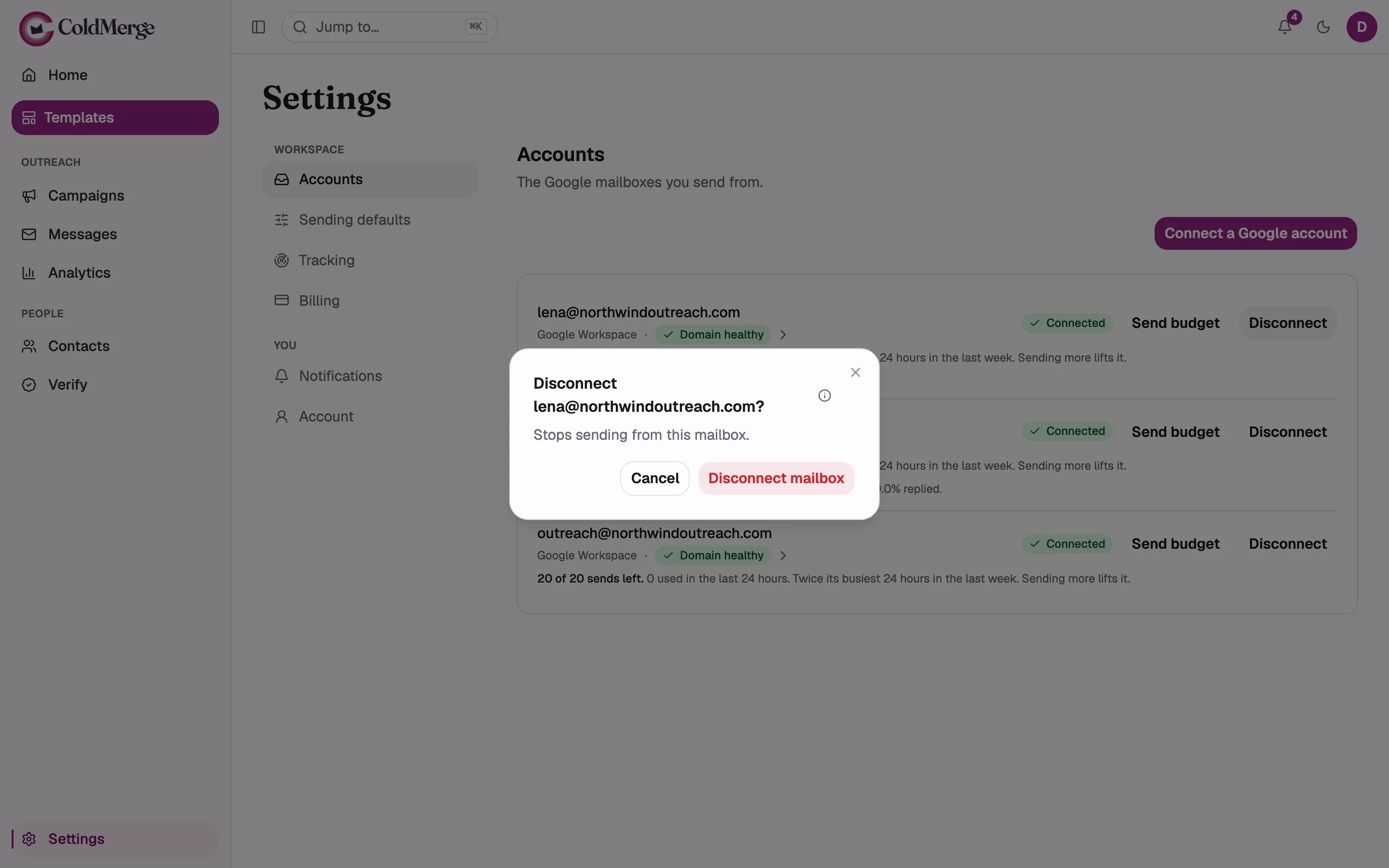
  3. Read the confirmation dialog, headed “Disconnect your address?”
  4. Select Disconnect mailbox to go ahead, or Cancel to back out.
The Disconnect confirmation dialog open over the Accounts page, showing the title, the description
“Stops sending from this mailbox.”, the info icon beside the title, and both buttons.

The dialog’s plain description is short: “Stops sending from this mailbox.” The information icon beside the title carries the part that matters most:

Revokes access at Google and releases the mailbox, which you may not be able to reconnect. Its history is kept.

Read that as three separate facts.

It revokes access at Google. ColdMerge’s permission is withdrawn at Google’s end and the stored credentials are destroyed. This is not a pause you can undo with one click.

It releases the mailbox. Once released, the mailbox is free for another ColdMerge workspace to claim. If somebody else claims it, you may not be able to connect it here again.

Its history is kept. Everything already sent from the mailbox stays in your reports. Disconnecting deletes no data.

Cancelling is completely safe. Nothing changes until you press the red button.

Each mailbox row carries a few lines of monitoring. They are covered in full elsewhere, but here is what each one is.

  • The status badge, either green Connected or amber Reconnect needed.
  • The domain health badge, on Workspace mailboxes only. Select it to open the sending domain screen.
  • The send budget line, for example “12 of 20 sends left”, plus a sentence naming which limit is holding it there. See Send budgets and limits.
  • The health line, once the mailbox has sent something: its all-time bounce rate and reply rate.
  • The waiting conversations line, on a Reconnect needed mailbox with follow-ups queued on it.