How do I connect my Gmail?
ColdMerge sends through your own mailbox, so nothing goes out until you connect one. Connecting is a Google sign-in with a permission screen, and it takes about a minute.
Only an Owner or an Admin can connect a mailbox. If you are a Member, the page tells you to ask an Owner or Admin instead of showing you the button.
Connect a mailbox
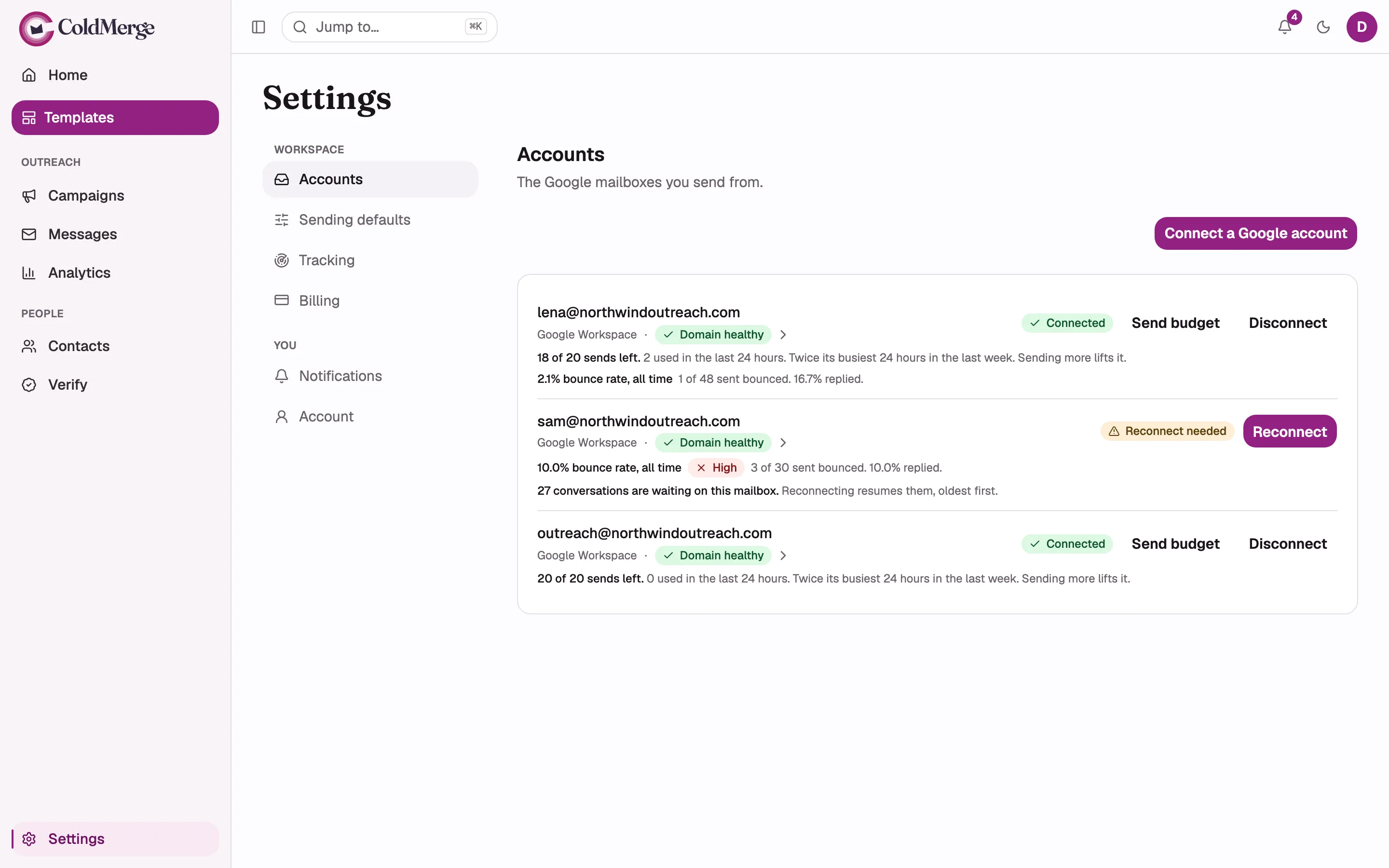
Section titled “Connect a mailbox”- Open Settings, then Accounts under the Workspace group. The page describes itself as “The Google mailboxes you send from.”
- Choose Connect a Google account at the top right. On a fresh workspace the empty state says “Connect a Google account to start sending.”
- A panel headed What Google will ask for lists the permissions Google is about to ask for and what each is used for, before you get there. Read it, then choose Continue to Google. The same panel appears behind Reconnect on a mailbox that has gone dark.
- Google asks which account you want to use. Pick the mailbox you want to send from, not necessarily the address you log in to ColdMerge with. They are separate things.
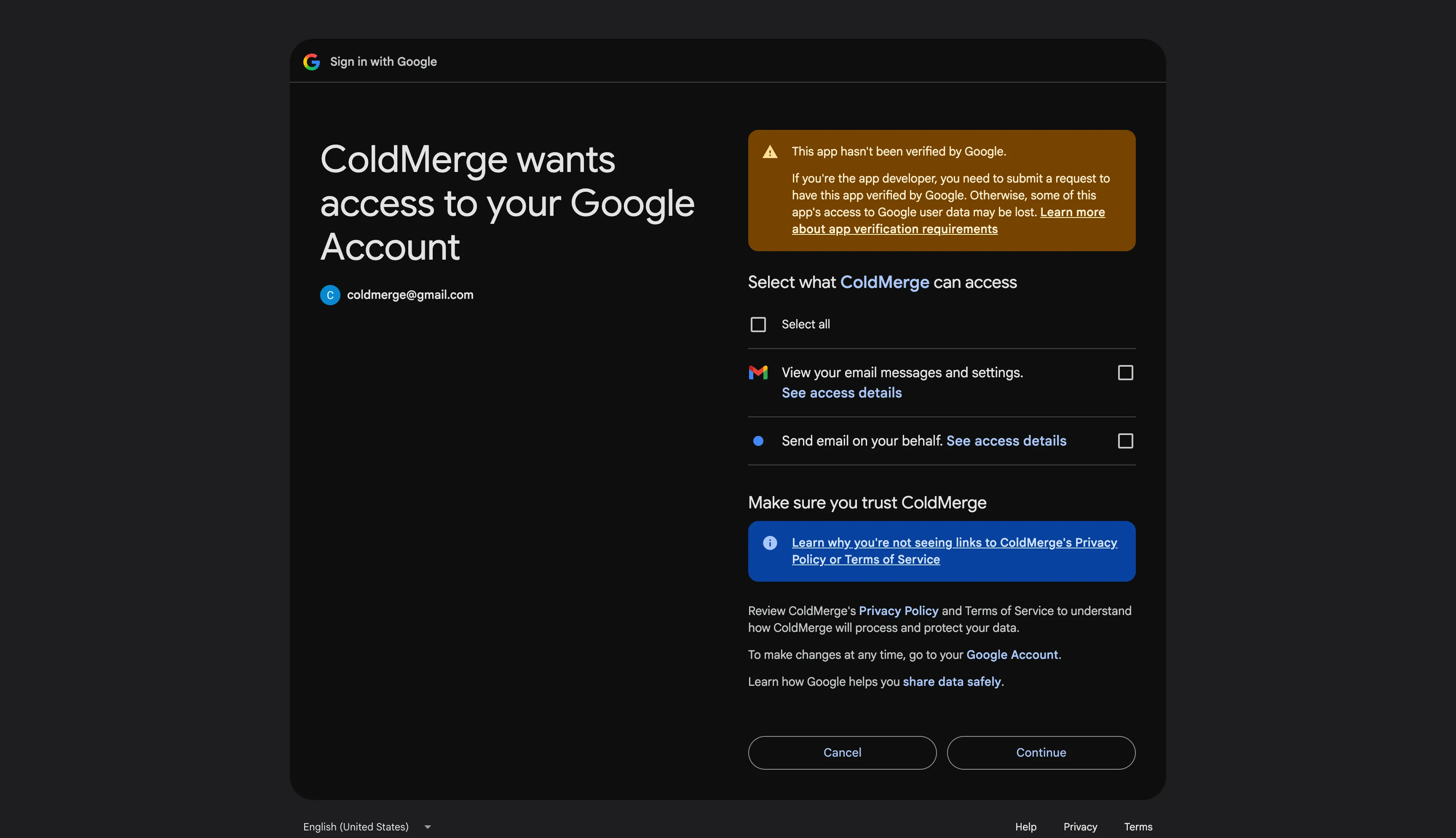
- Google shows the permission screen. Leave every tick box ticked and continue.
- Google sends you back to Accounts, and a banner tells you how it went.

getting-started-google-permission-screenGoogle’s own consent screen for ColdMerge, with the permission list visible and every tick box ticked. Annotate the two Gmail permissions as the ones that must stay ticked. Use a demo Google account so no real address is shown.
What each permission is for
Section titled “What each permission is for”ColdMerge asks for these at the first connect:
- Send email. Required. This is how your campaigns and follow-ups go out, from your own mailbox, as you. Untick it and the connection is refused.
- Read email. Also required. ColdMerge reads incoming mail only to match a reply or a bounce against a message it sent, so a sequence stops the moment somebody answers. Anything that does not match is dropped unread. A mailbox that could send but not read would carry on chasing people who had already replied, so a connection without this one is refused too.
- Your name and email address. Optional. This is how ColdMerge knows which mailbox you connected, and where it learns the display name to sign your messages with. Without it the mailbox sends from a bare address with no name attached.
Google’s postmaster data is not requested here. ColdMerge asks for that separately, later, from inside the domain-health flow.
What the banner means when you come back
Section titled “What the banner means when you come back”The banner at the top of Accounts reports one outcome, once. Reloading the page clears it.
- Mailbox connected. Done. The mailbox now appears in the list with a Connected badge. This is also what a successful reconnect shows.
- Connection cancelled. You backed out at Google. Nothing was created, and nothing is wrong. Start again when you are ready.
- Send email and Read email are both required, the second so a reply stops the follow-ups. Connect again and leave both ticked. You unticked one of the two Gmail permissions on the consent screen. Run the connect again and leave both boxes alone.
- Google did not return a lasting credential. Try again. Google did not hand over a credential ColdMerge can keep using. Running the connect again usually fixes it.
- That mailbox is connected elsewhere. Disconnect it there first, then connect it here. One mailbox belongs to one ColdMerge workspace at a time. Remove it from the workspace that holds it, then connect it here. ColdMerge does not name the other workspace, on purpose.
- You have reached your plan’s mailbox limit. Upgrade to connect another. Your plan covers a certain number of connected mailboxes and they are all in use. See Account & billing.
- Your session expired. Log in, then connect again. Your ColdMerge login timed out while you were at Google. Log back in and start the connect again.
- Could not connect. Try again. Something else went wrong. Try again, and contact support if it keeps happening.

Check the mailbox is really connected
Section titled “Check the mailbox is really connected”Each row on Accounts shows the address, whether it is Gmail or Google Workspace, and a status badge:
- Connected, the mailbox can send.
- Reconnect needed, the mailbox has lost its permission at Google and is sending nothing until you fix it.
A row can also carry a domain badge (Domain healthy, Domain needs attention, Domain unverified, or Weak policy). Choosing it opens the domain detail page. Domain health is covered in Mailboxes & sending domains and Deliverability.

Reconnect a mailbox
Section titled “Reconnect a mailbox”A mailbox goes to Reconnect needed when its permission is revoked or expires at Google. Nothing sends from it until it is back.
- Open Settings, then Accounts.
- Choose Reconnect on that row. It is the same Google flow as the first connect.
- Sign in as that same mailbox and leave the permissions ticked.
If a sequence had follow-ups waiting on that mailbox, the row says how many conversations are waiting. Reconnecting resumes them, oldest first. Reconnecting does not restart the mailbox from scratch: ColdMerge keeps counting the mailbox’s age from when you first connected it.
Disconnect a mailbox
Section titled “Disconnect a mailbox”Choose Disconnect on the row. A dialog confirms it, and it is worth reading: disconnecting revokes access at Google and releases the mailbox. You can connect it here again yourself, and doing so does not count fresh against your plan’s mailbox limit, but once released another ColdMerge workspace can claim it, and if one does you cannot take it back until they disconnect it. The mailbox’s history is kept. Confirm with Disconnect mailbox.
Go on to Send your first campaign