
How do I set my default sending window?
Choose the hours, days, and timezone that new campaigns use by default.
3 min read
A sending window is the span of hours a campaign may send in. Outside it, sending pauses and picks up when the window next opens. The default here is what every new campaign starts with.
Changing it is an Owner and Admin action. A Member sees the window but not the controls, with the line “Ask an Owner or Admin to change it.”
Change the default window
Section titled “Change the default window”- Go to Settings, then Sending defaults.
- Find the Sending window section. Your current window is summarised in one
line, for example
09:00 to 17:00 UTC, Mon, Tue, Wed, Thu, Fri. - Set From and To.
- Choose your Timezone. The times above are read in this zone, and your own browser’s timezone is offered near the top of the list.
- Tick the Days you want to send on.
- Select Save the window.
A message confirms “Sending window saved.”
Nothing is written while you type. The whole window saves on one press, so a half-typed time is never stored. A Reset button appears beside Save while anything differs from what is stored.
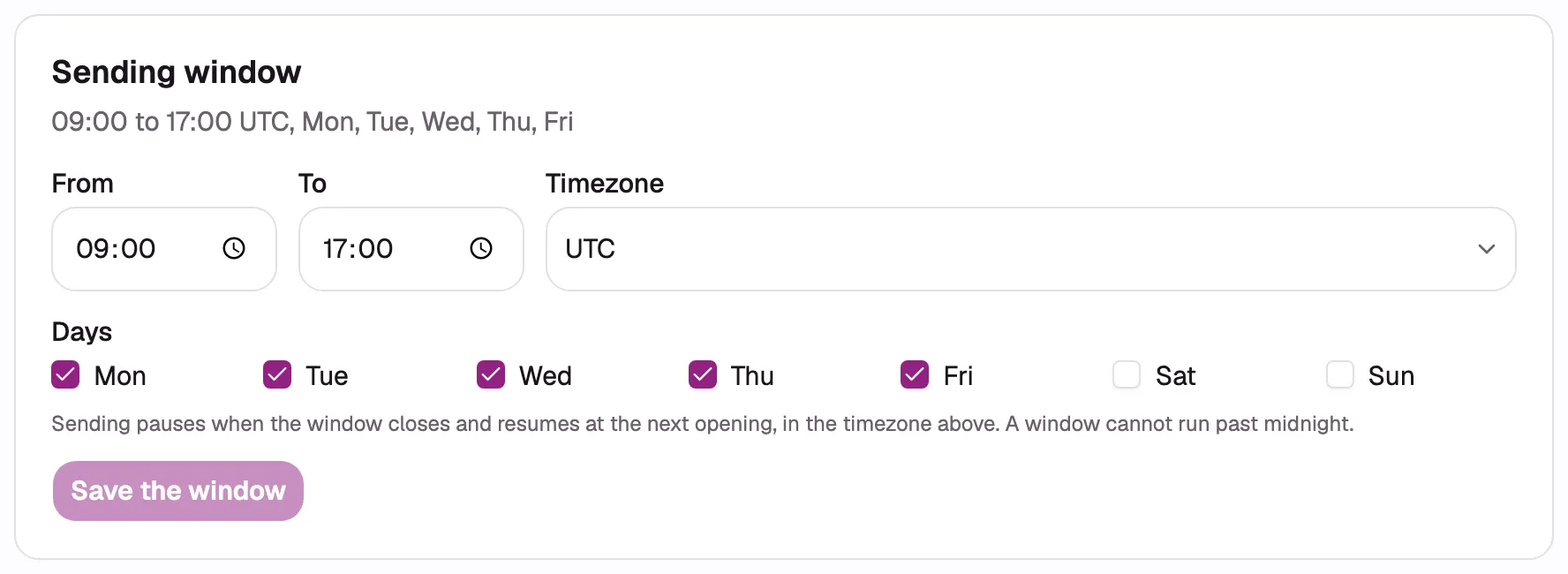
- Set the From time.
- Set the To time.
- Choose the timezone.
- Select the days when sending is allowed.
- Select Save the window.
What a new workspace starts with
Section titled “What a new workspace starts with”| Setting | Default |
|---|---|
| From | 09:00 |
| To | 17:00 |
| Days | Monday to Friday |
| Timezone | UTC |
The timezone starts as UTC because nothing on the server knows where you work. This is the one default worth changing straight away.
What the form refuses
Section titled “What the form refuses”| The window | Why it is refused |
|---|---|
| Runs past midnight, such as 22:00 to 06:00 | Pick hours that start and end on the same day. Choosing a different timezone is usually what you actually want. |
| Starts and ends at the same time | It would be open for no time at all, which reads as a typo. |
| Has no days ticked | It could never open. |
The note under the fields states the first: “Sending pauses when the window closes and resumes at the next opening, in the timezone above. A window cannot run past midnight.”
Daylight saving is handled for you. Your window is stored as a time in a named timezone, not a fixed offset, so 09:00 stays 09:00 where you are when the clocks change.
What changing the default does not touch
Section titled “What changing the default does not touch”Campaigns that already exist, including ones still in draft. Every campaign copies the default at the moment it is created and keeps its own copy from then on, so changing this can never reschedule a live campaign.
Related
Section titled “Related”- Pacing and sending windows, for why the window exists and what happens when it closes.
- How much can each mailbox send?, for how much a mailbox may send once the window is open.
- The Sending defaults page also holds your postal address and the one-click unsubscribe header. See Add an unsubscribe footer or header.