
How do I create my account?
Sign up with Google or an email and password, verify your address, and log in.
3 min read
During the private beta, request an invite first. Mubarak replies with a single-use code if ColdMerge fits your campaign. Then open the ColdMerge sign-up page and enter that code before choosing how to create your account. Choose Google for the shortest setup, or email and password for a separate login.
Sign up with Google
Section titled “Sign up with Google”- Open the ColdMerge sign-up page.
- Select Continue with Google.
- Choose the Google account you want to use to sign in.
ColdMerge creates your workspace and opens Home. This Google account is your ColdMerge login. You connect sending mailboxes separately in Settings, then Accounts.
If Google refuses
Section titled “If Google refuses”| What you see | What to do |
|---|---|
| This Google account is already linked to a ColdMerge account. Sign in instead. | Open the login page and use Continue with Google. |
| Google closes or cancels the flow | Start again when you are ready. No account was created. |
| A general sign-up error | Try again. Contact support if it continues. |
Sign up with an email and password
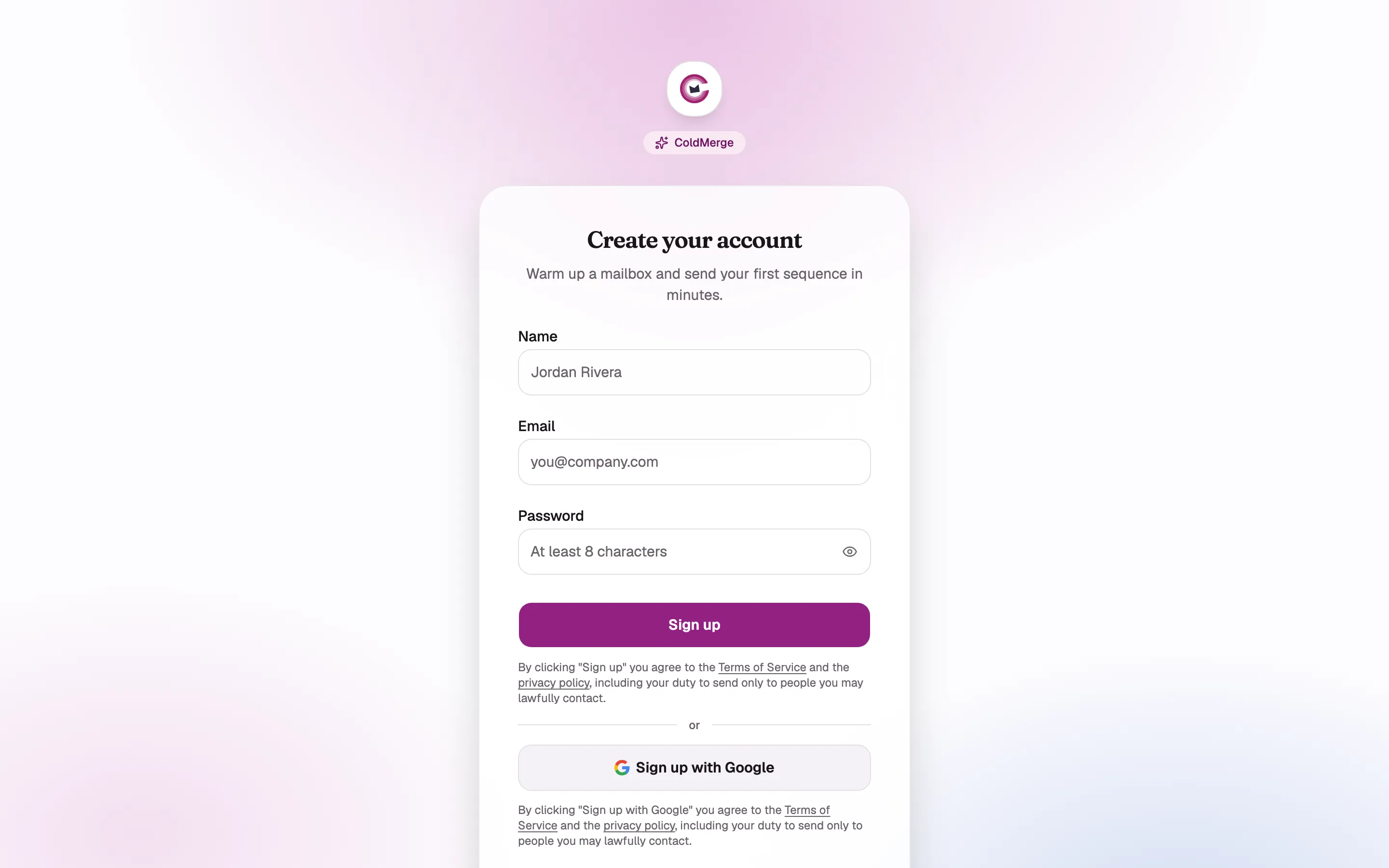
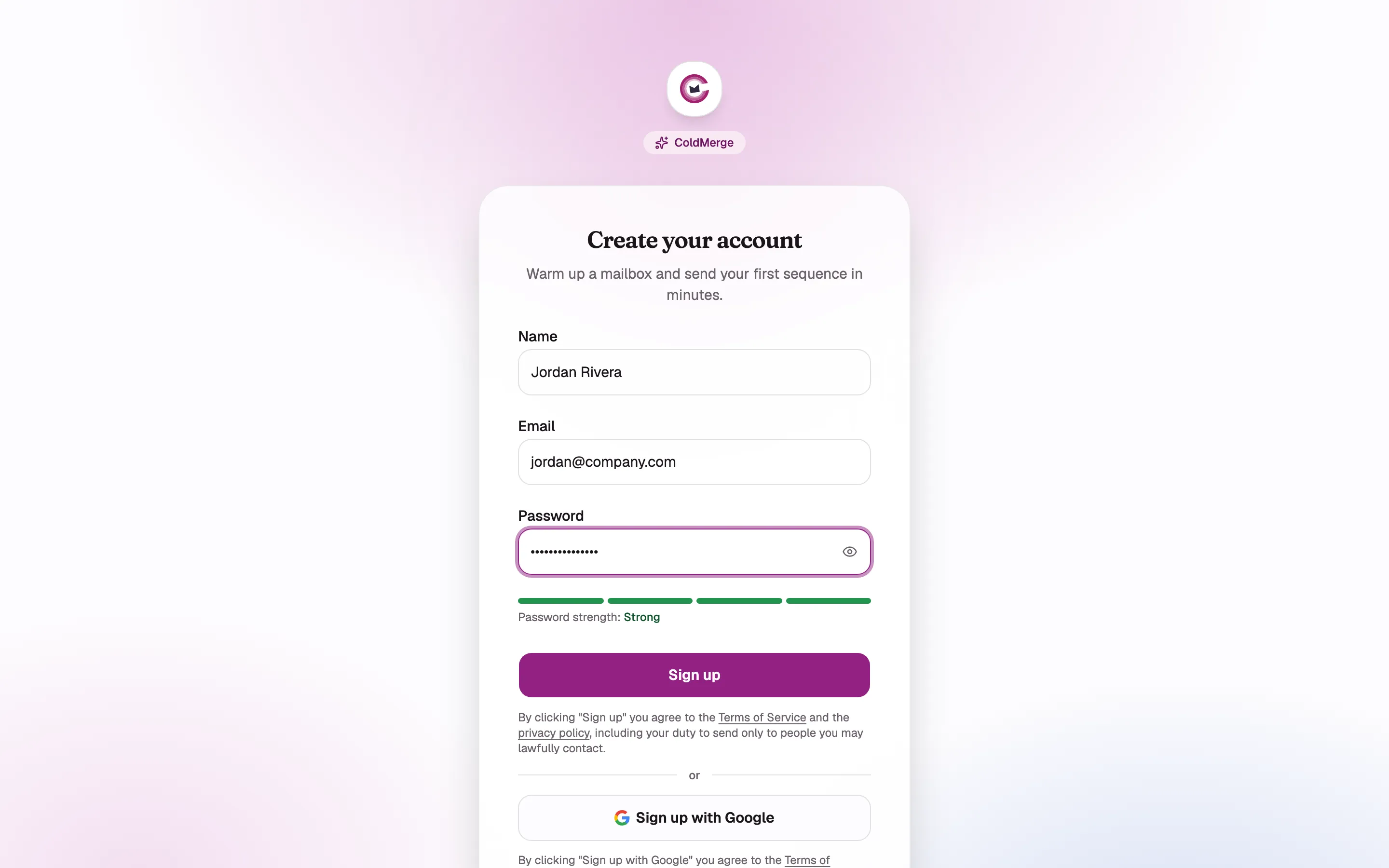
Section titled “Sign up with an email and password”- Enter your name, email address, and password.
- Select Create account.
- Complete the security check if it appears.
- Open the verification email and select its link.
Your trial starts when you verify the address, not when the form is submitted.
The security check
Section titled “The security check”ColdMerge may ask you to complete a checkbox or challenge before it accepts the form. If the check expires, complete it again and resubmit.
You accept the Terms by signing up
Section titled “You accept the Terms by signing up”The sign-up page links to the Terms of Service and Privacy Policy. Creating the account records the versions you accepted.
Verify your email address
Section titled “Verify your email address”The verification link opens a page that either confirms the address or explains why it could not be confirmed.
| Result | What to do |
|---|---|
| Address verified | Select Continue to ColdMerge. |
| Link expired | Request a new verification email. |
| Link already used | Sign in. |
| Address belongs to another account | Sign in with that address or use another one. |
Log in
Section titled “Log in”- For a Google login, select Continue with Google.
- For an email login, enter your email and password, then select Sign in.
- If two-step verification is enabled, enter the code from your authenticator app or use a backup code.
If you are locked out
Section titled “If you are locked out”Wait for the time shown on the sign-in page before trying again. Repeated failed password or two-step attempts are temporarily blocked.
Reset a password you forgot
Section titled “Reset a password you forgot”- Select Forgot password? on the sign-in page.
- Enter your email address and select Send reset link.
- Open the email, choose a new password, and submit it.
For security, the request page gives the same response whether or not an account exists for that address.
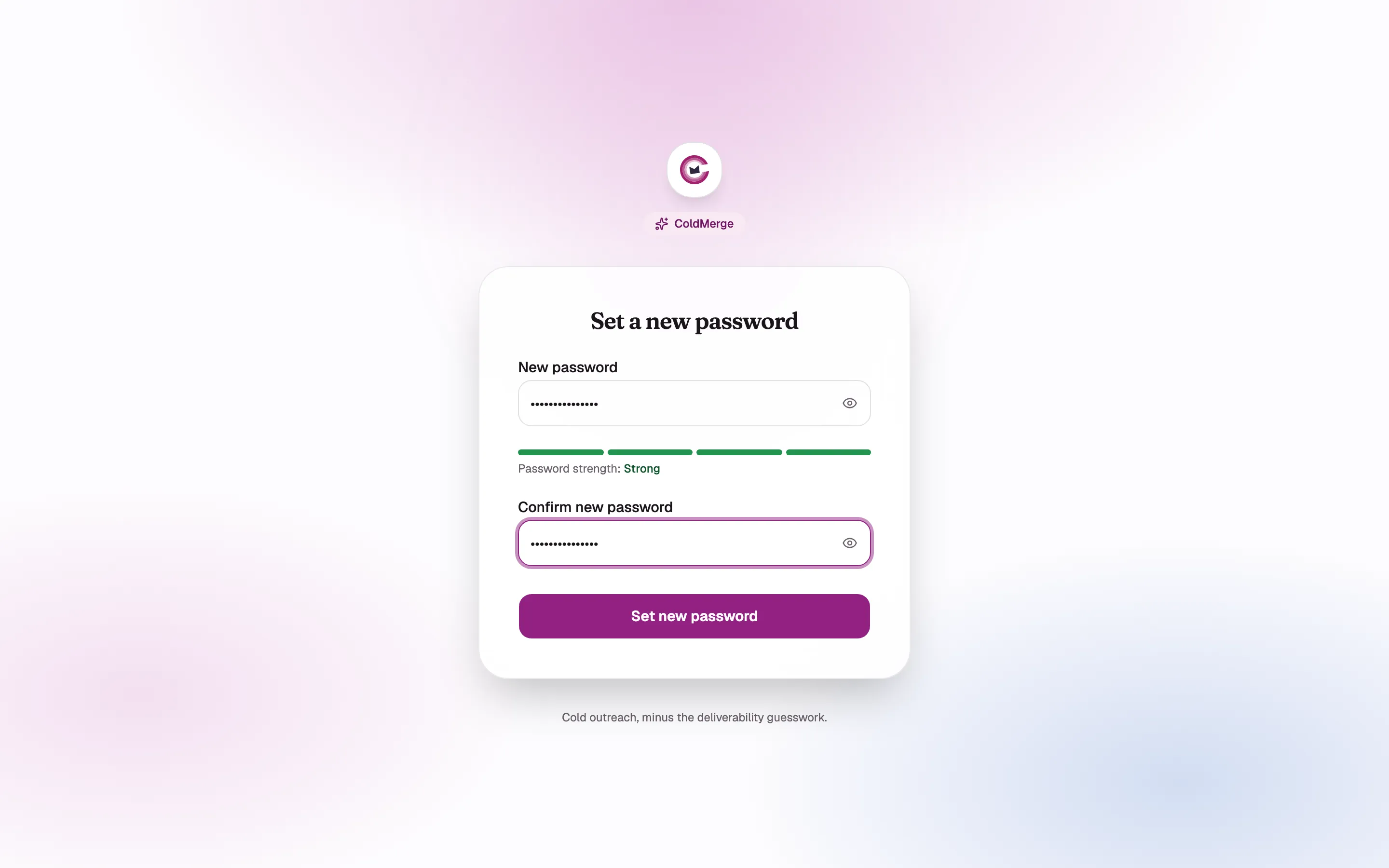
- Enter a new password.
- Confirm the new password.
- Select Set new password.
Changing your password or email address later
Section titled “Changing your password or email address later”Open Settings, then Account. See Account and security for passwords, two-step verification, email changes, and active sessions.