Analytics and sent messages
Two screens answer “how did that go”. Analytics gives you the rates across a date window. Messages gives you the individual sends, one row each, including the failures and their reasons.
The Analytics screen
Section titled “The Analytics screen”Go to Analytics. Everything on it is filtered by a send-date window, and the window lives in the address bar, so a link to a particular view keeps that view.
Pick a window
Section titled “Pick a window”Select the date button at the top left, which is labelled with the window you are currently on. A panel opens with two ways to choose:
- Three presets down the left: Last 7 days, Last 30 days, Last 90 days. Last 30 days is the default.
- A two-month calendar for a custom span. Select a first day and a last day. Nothing is applied until you have picked both ends.
While a new window loads, the numbers you were looking at stay on screen and dim slightly rather than vanishing.
The four tiles
Section titled “The four tiles”| Tile | What it counts |
|---|---|
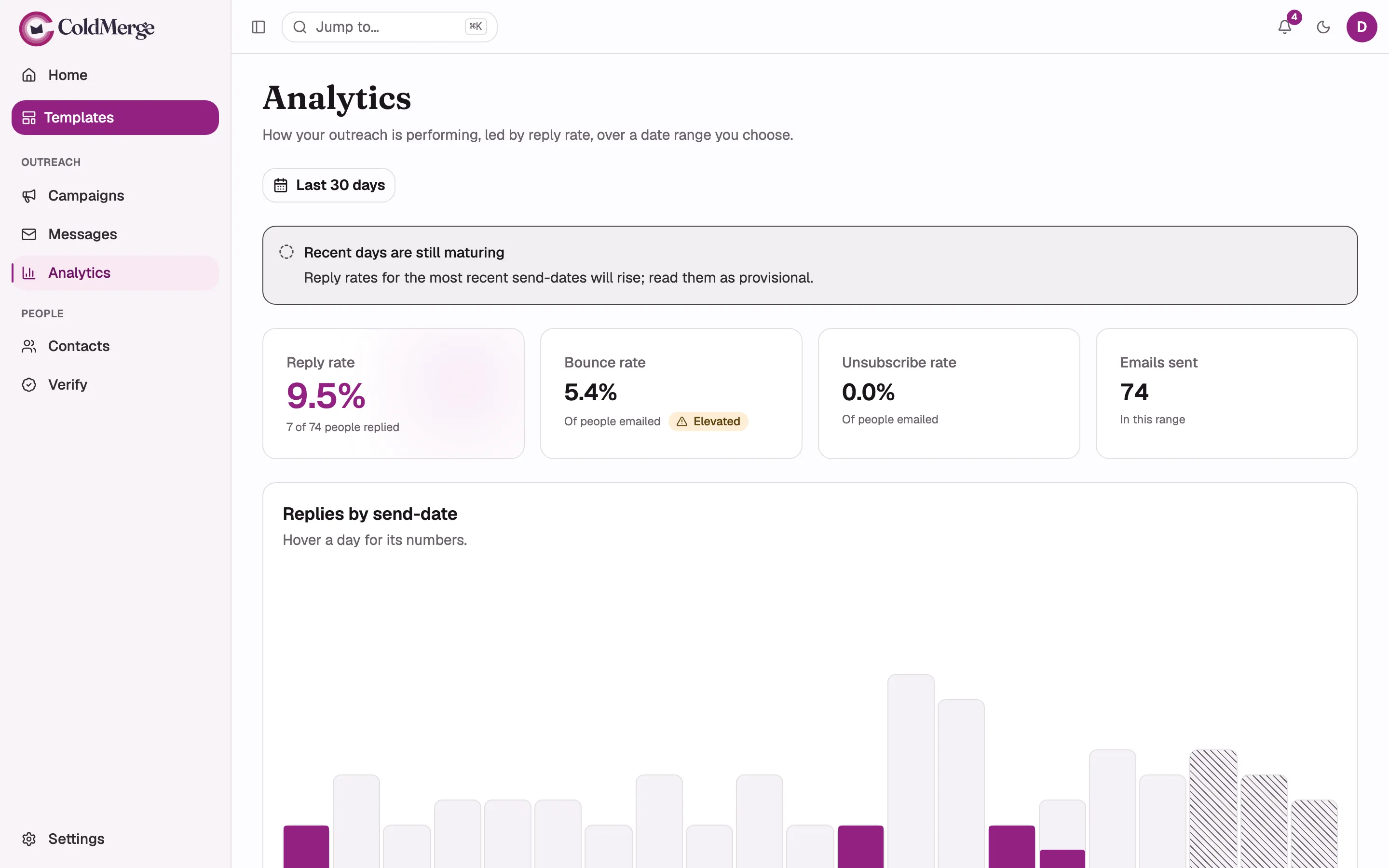
| Reply rate | People who replied, over people emailed. The headline number |
| Bounce rate | Of people emailed. Carries a health badge when it climbs |
| Unsubscribe rate | Of people emailed |
| Emails sent | Emails in this range |
Reply rate is the hero for a reason. It is a human being answering you, it needs no tracking domain, and it cannot be inflated by a scanner or a privacy proxy. Bounce and unsubscribe sit beside it as their own numbers over the same base, and are never folded into it.
“Recent days are still maturing”
Section titled ““Recent days are still maturing””If your window includes the last few days, a notice appears: reply rates for the most recent send-dates will rise, so read them as provisional.
The reason is simple. Someone emailed this morning has not had time to reply yet. Their send counts immediately, their reply has not happened yet, so today’s reply rate always looks worse than it will end up.
The chart marks those days too. See below.
The chart
Section titled “The chart”Replies by send-date draws one column per day. The full height of a column is the people emailed that day, and the filled part is how many of them replied. Hover a column for that day’s emailed, replied, and reply rate.
A still-maturing day is drawn hatched, so a short recent bar reads as provisional rather than as failure. The legend under the chart names all three: Replied, Emailed, Still maturing.
Every number in the chart is also in the list below it, so nothing is available only by hovering.
Every outcome behind the rates
Section titled “Every outcome behind the rates”A list of the plain counts: Sent, Replied, Bounced, Unsubscribed (all counted as people), Failed (counted as attempts), and Remaining (queued to send).
Note the difference between Failed and Bounced. Failed means Gmail refused the send and it never left. Bounced means it left, was accepted, and came back afterwards. See how reply detection works.
Opens and clicks
Section titled “Opens and clicks”The last section holds the tracking numbers, deliberately placed below everything else. Its hint says how to read them: Apple Mail privacy inflates opens and the pixel can hurt deliverability, so read them as a rough secondary signal, never the headline.
If tracking is not on, this section shows a notice reading “Tracking is off” with the line “Turn it on per campaign to populate this row.” See open and click tracking.
If the window is empty
Section titled “If the window is empty”If nothing was sent in the range, the screen says “No sends in this range” and suggests trying a wider range. Nothing is broken.
The Messages screen
Section titled “The Messages screen”Go to Messages for the individual sends, newest attempt first.
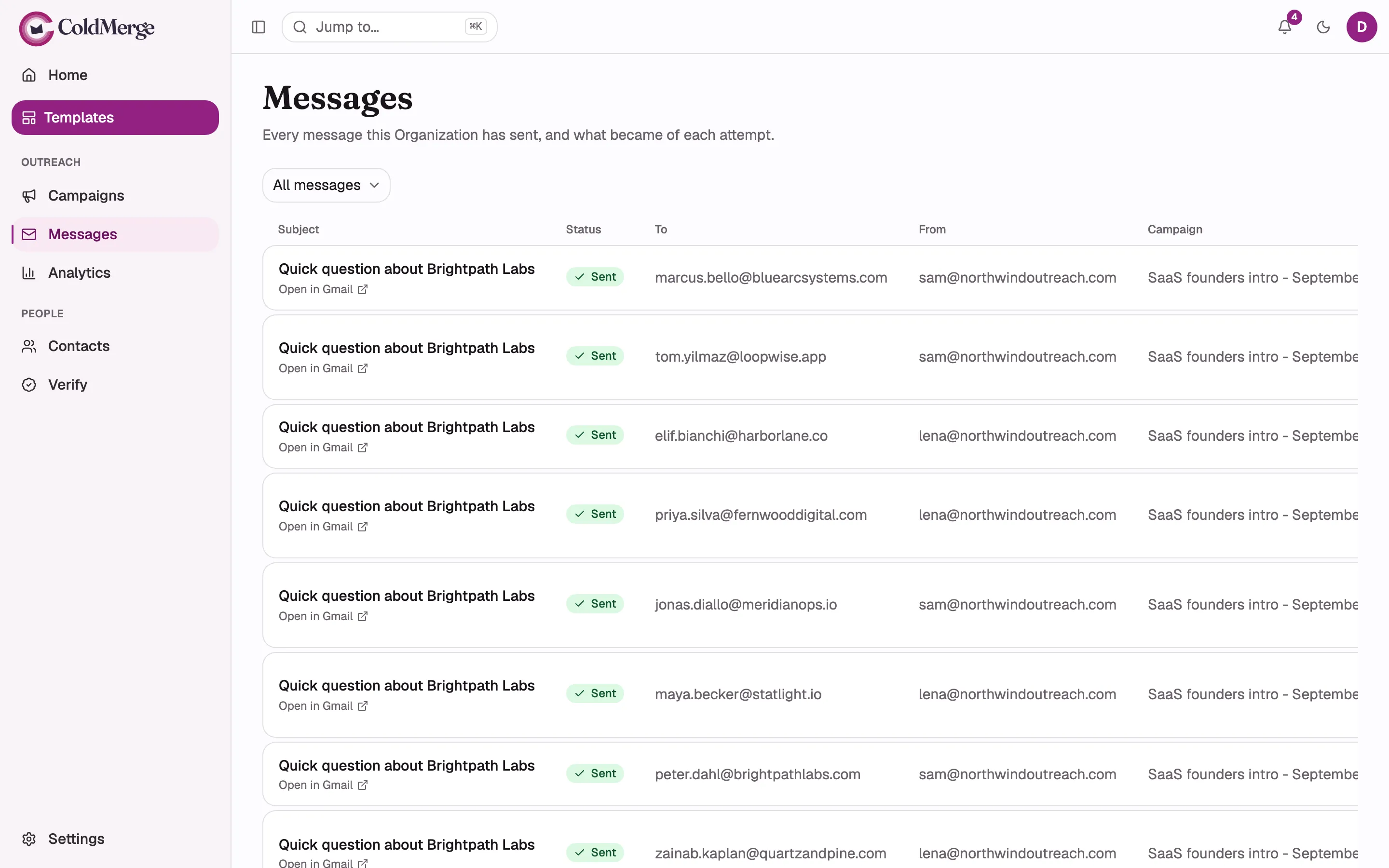
Each row carries the subject, the status, who it went To, which mailbox it went From, which Campaign it belonged to (or “Composed by hand”), and when it was Attempted. On a phone the rows collapse into cards and stay readable.
Filter by status
Section titled “Filter by status”The filter at the top offers All messages, Sent, and Failed. All messages is the default and includes sends that are still in flight.
| Status | What it means |
|---|---|
| Sent | Gmail accepted the message and it is in your Sent folder |
| Failed | Gmail refused it. It never left |
| Pending | The send has been made and the outcome is not known yet. ColdMerge is chasing it |
Failure reasons
Section titled “Failure reasons”A failed row shows its reason directly under the subject, in red. It is there so you can act on it, not as decoration. The reason is reported as it came back, rather than reworded into something vaguer.
The reasons worth knowing on sight:
- “Gmail rejected the send (HTTP 429: rateLimitExceeded).”, or a similar line with another code in brackets. Gmail itself refused the message, and the code is Gmail’s own name for why. Codes about rate or quota mean the mailbox hit a Google limit; ColdMerge backs off and retries those by itself.
- “The mailbox needs reconnecting: Google no longer accepts our access to it.” Go to Mailboxes and reconnect. Sends bound to that mailbox wait for you rather than failing over to another one.
- “The mailbox credential could not be refreshed, so nothing was sent.” Same fix: reconnect the mailbox.
- “Gmail did not answer, so whether this message was sent is still being confirmed.” This row is Pending, not Failed. ColdMerge checks the mailbox’s Sent folder and settles it either way, on its own.
- “The unsubscribe footer’s unsubscribe link did not survive this body’s markup, so nothing was sent.” The end of your email body swallowed the footer. Simplify the end of the body. See the unsubscribe footer.
- “This send was interrupted before Gmail accepted it…” and its siblings mentioning an interrupted send. Something stopped the sending process mid-message. ColdMerge retries an interrupted send once by itself, and writes off a second interruption rather than risk emailing the same person twice.
If failures are clustering, check your mailboxes and send budgets and limits.
Open in Gmail
Section titled “Open in Gmail”Every sent row carries an Open in Gmail link that opens the actual conversation in the sending mailbox.
That link exists because ColdMerge does not store message bodies. Gmail holds the content, so rather than showing you a copy that could drift out of date, ColdMerge takes you to the real thing, which is also where you would reply from.
The same list, in context
Section titled “The same list, in context”The same message history appears in two other places, scoped to what you are looking at:
- On a contact, every message sent to that person.
- On a campaign, every message sent from that campaign, refreshing while the campaign is still sending.