
An honest comparison
ColdMerge vs YAMM
Keep YAMM if your Google Sheet is where you want to select recipients and launch each follow-up. Consider ColdMerge if you want to prepare timed follow-up steps together before launching a Gmail campaign. We make ColdMerge; this comparison uses YAMM's official guides, not a hands-on YAMM test.
Pick YAMM if
- Your contacts already live in Google Sheets and you want a quick personalized mail merge.
- You send invitations, updates or surveys and want to choose the next audience from the Sheet's tracking report.
Pick ColdMerge if
- You bring a researched CSV and want to manage repeated outreach in a separate workspace.
- You want to configure the follow-up delays before launch and let detected replies stop remaining steps, within each inbox's sending window and allowance.
ColdMerge is in a private beta. Invited testers can start a 14-day trial with no card, then choose whether to subscribe to the Tester plan at $0.99 a month. Public plans are not available to buy yet. See current pricing.
Side by side
Choose the workflow you will actually use
A Sheet-based mail merge is a good fit for many jobs. A campaign workspace helps when sending and follow-ups become a regular process.
| Basis |  ColdMerge ColdMerge | YAMM |
|---|---|---|
| Where you prepare the list | CSV importImport your researched CSV and map its columns to message fields. | Google SheetsPrepare recipients in a Google Sheet, including contacts imported from Google Contacts. |
| Where you write | Web appWrite the campaign and its follow-up steps in ColdMerge. | Gmail draftWrite a Gmail draft, then select it from the YAMM add-on in Sheets. |
| Follow-ups | IncludedSchedule steps in one sequence. A detected reply or bounce stops the remaining steps for that person. | IncludedWith tracking enabled, choose a follow-up audience such as people who have not responded, then launch a new draft. Same-thread sending has subject and sender requirements. |
| Several sending inboxes | IncludedDistribute a campaign across connected inboxes, each within its own allowance. | Different approachYAMM documents separate browser profiles: run a merge from one Google account, switch profiles, then run from the next. Aliases are also supported. |
| Sending pace | IncludedSee daily allowances and set a sending window; new mailboxes ramp up gradually. | IncludedSchedule a mail merge. The available daily recipient quota depends on the YAMM plan and Google account. |
| Campaign results | Monitor sends and replies in the campaign workspace; reply messages remain in Gmail. | Track opens, clicks, responses, bounces and unsubscribes from the Google Sheet. |
Workflow
An invitation and one unanswered reminder
Suppose a consultant invites an opted-in workshop list and plans one reminder after three days. This is an illustrative setup based on documentation, not a timed test of either product. The deciding question is when you want to choose the next audience and prepare its message.
YAMM
- Keep the invitation list in Sheets. Write the invitation in Gmail and enable tracking for the first merge.
- When ready for the reminder, open the tracking report, choose people who have not responded and select the reminder draft.
- Launch the follow-up. For the same Gmail thread, keep the original subject and sending account. YAMM excludes bounced and unsubscribed recipients.
ColdMerge
- Import the same invitation list as a CSV and map the name and company fields used in the message.
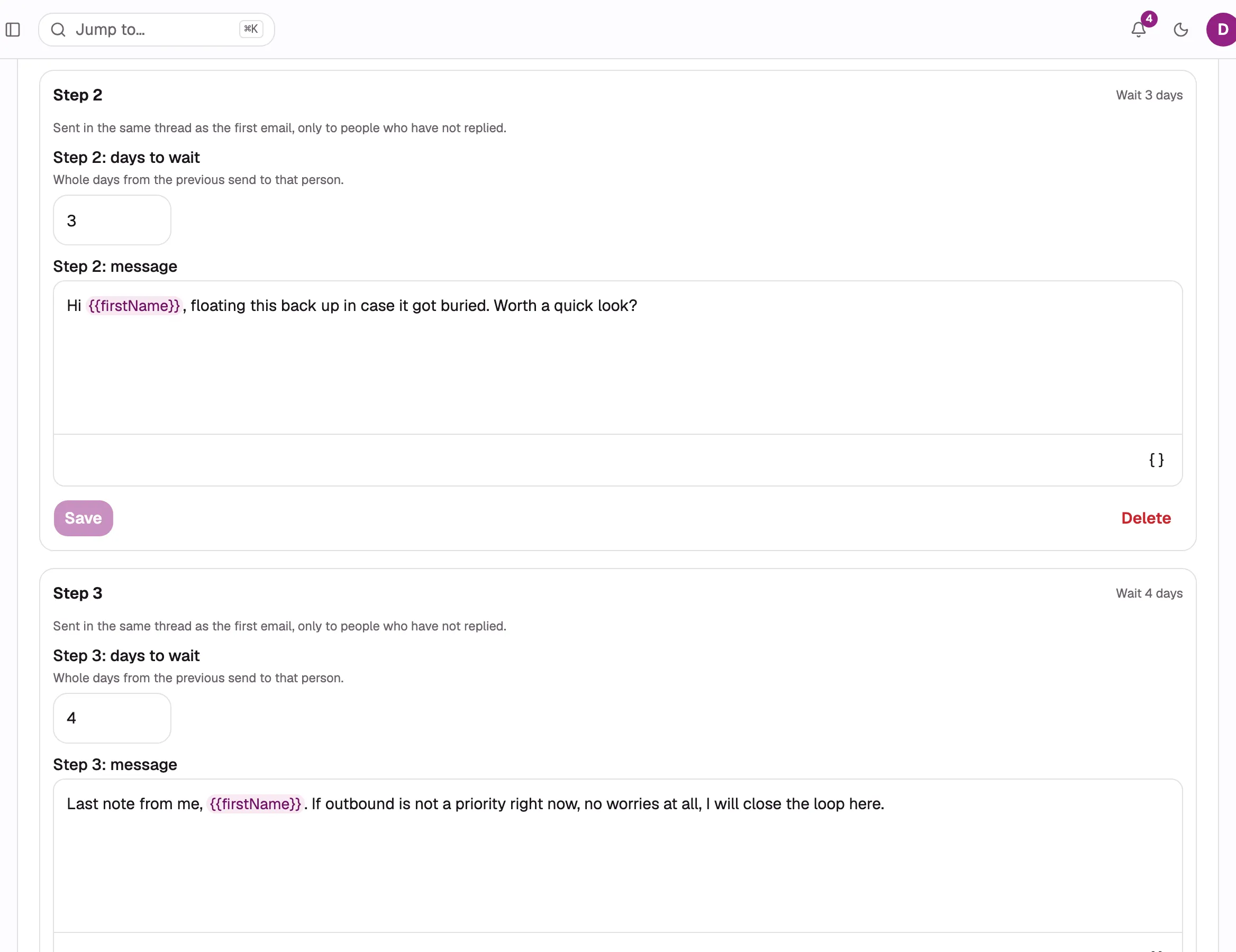
- Before launch, save the invitation and one reminder with a three-day delay. Preview the messages and review the mailbox's sending window and allowance.
- The reminder becomes due three days after that person's actual first send, subject to sending controls. A detected reply or bounce stops remaining steps; answer replies in Gmail.
Where YAMM fits
Keep your mail merge in Sheets
Stay with YAMM when reviewing a Sheet and choosing each next audience is part of your process. Moving to another workspace has a setup cost.
It covers more than outreach. Event invitations, updates and surveys are natural jobs for a spreadsheet mail merge.
Explore YAMM plansWhat YAMM does better
- 01
Use Sheet filters to select recipients and follow up with a segment.
- 02
Personalize attachments, links and images from your spreadsheet.
- 03
Track responses, bounces and unsubscribes beside the list you sent.
Where ColdMerge fits
Prepare the reminder before launch
ColdMerge fits a founder or small team that wants to write the sequence once, review its delays and monitor the campaign separately from Gmail.
The campaign, follow-ups and sending controls live together. Replies stay in Gmail, and a detected reply stops that person's remaining steps. Invited beta testers can get help setting up the first campaign.
See the Gmail permissionsMoving over
Start with one list
Export the contacts you are allowed to email, and carry previous opt-outs separately. Rebuild the message and follow-ups in ColdMerge, then test a small send. YAMM campaign history and Gmail drafts do not transfer automatically.
Keep the original Sheet for past results and cancel any outstanding scheduled merges or reminders for the migrating audience. Collect previous unsubscribes and other stop requests from every relevant campaign, then import those addresses into ColdMerge suppression before launch.
02Export the eligible contact list as CSV, map its columns and connect Gmail after reviewing the requested permissions.
03Recreate the message and follow-up steps. Preview complete and missing-data rows, check the sending window and start with a small campaign.
FAQ
Before you move from Sheets
The practical differences between a mail merge and a campaign workspace.

Take one list out of the Sheet.
Try a small campaign from your own Gmail account.
Up to 14 days free, no card required. Trial send allowance applies.